
What You Need (2 minutes)
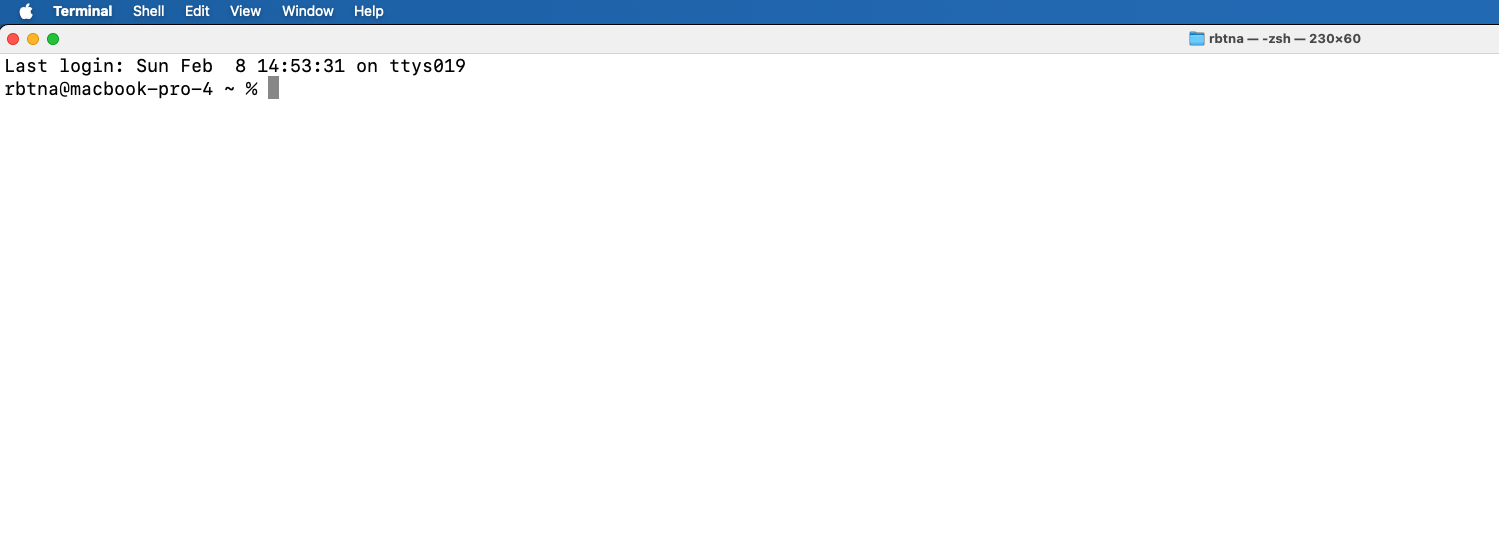
1. A computer with a terminal
2. A Claude Pro subscription
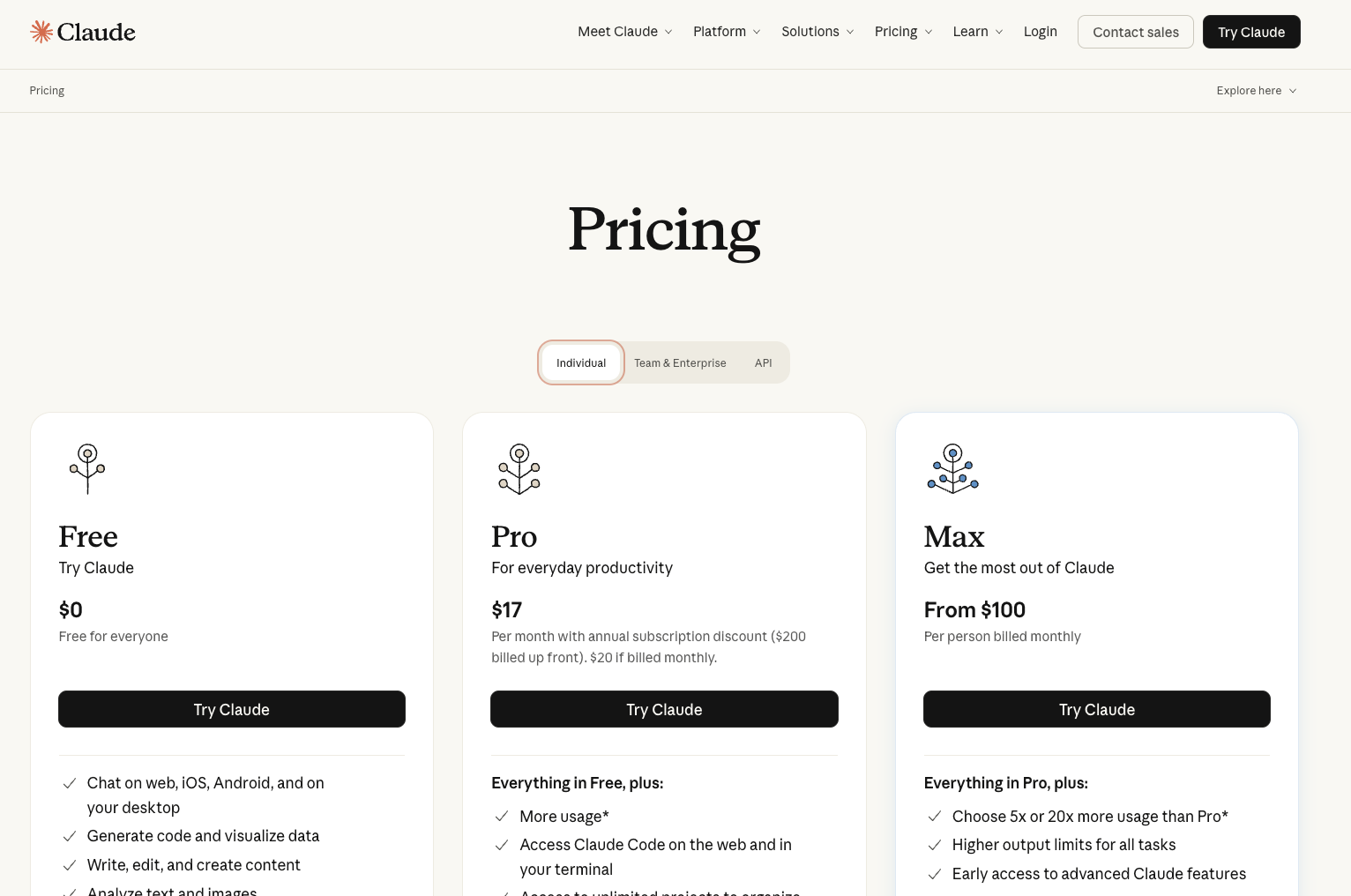
If not, go get it. I’ll wait.
3. Node.js installed
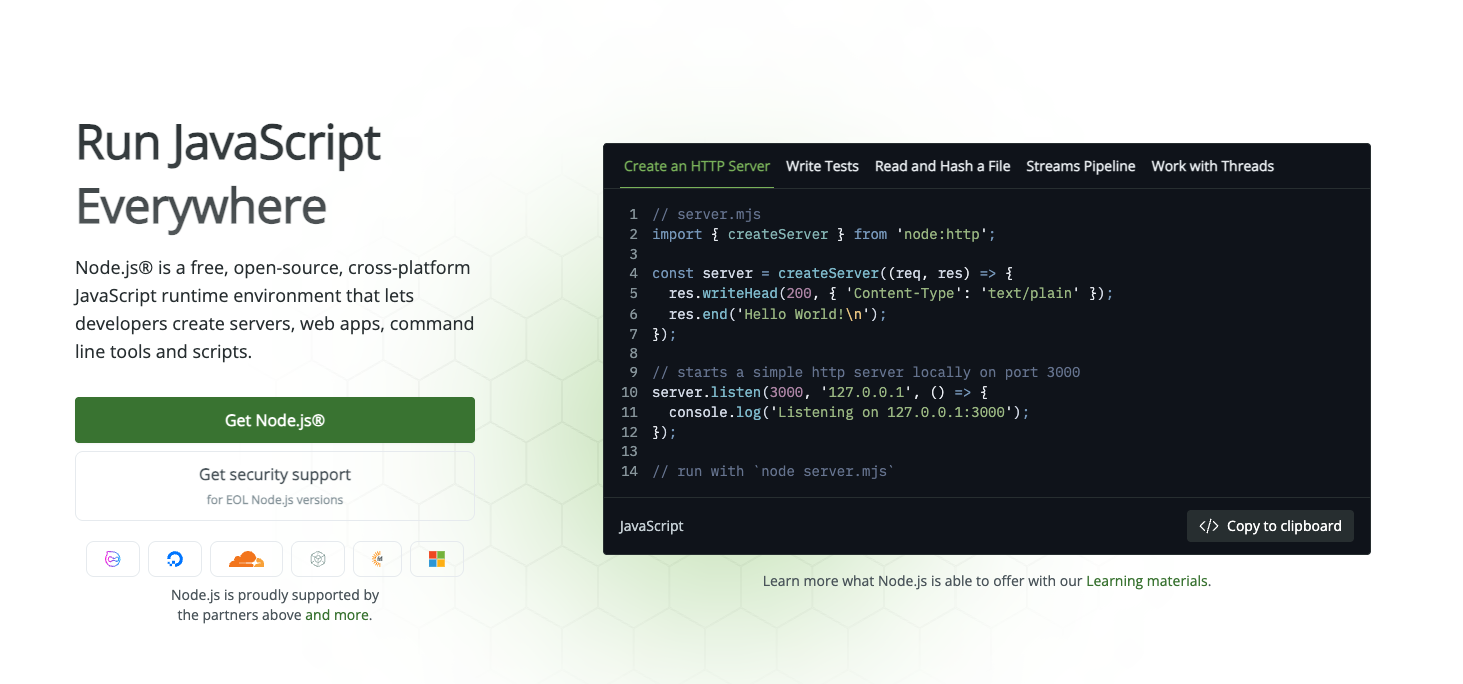
Go to nodejs.org, click the big green button, install it.
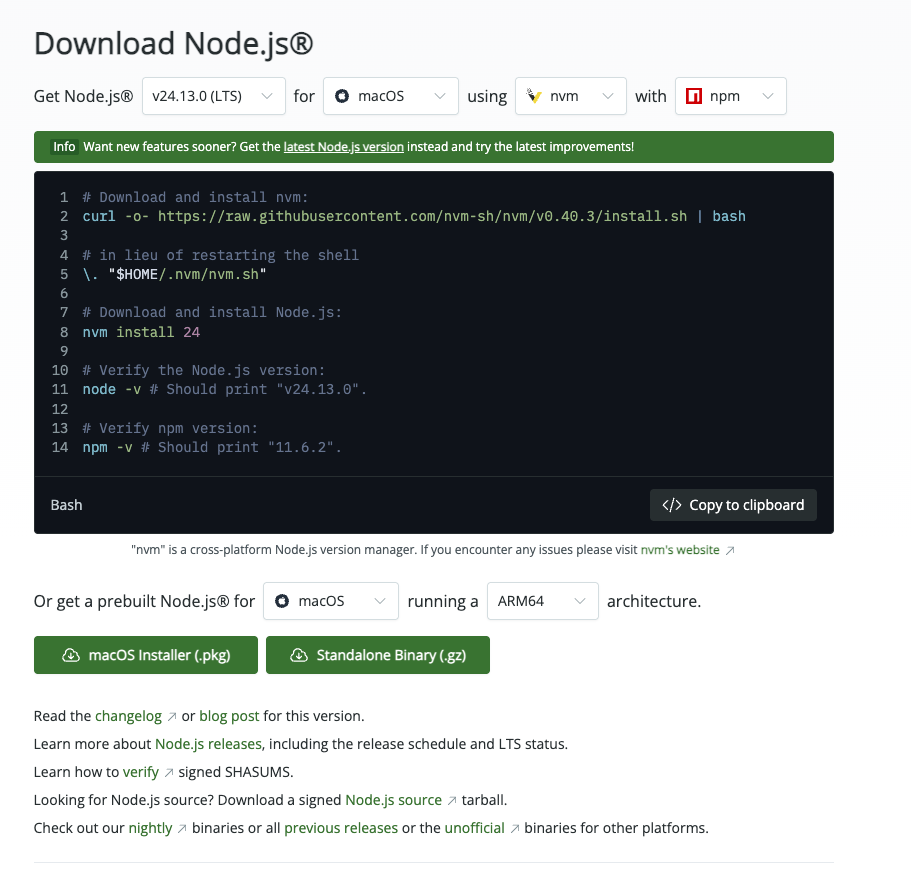
That’s it. Don’t read the documentation (unless you really want to).
Just install it.
Mac: open “Terminal” from Applications.
Windows: use “Command Prompt” or “PowerShell.”
If those words mean nothing, just search your computer for “terminal” and open the first result.
$20/month if you pay monthly, $17/month if you pay annual at claude.ai.
You probably already have one.
Install Claude Code (3 minutes)
Open your terminal.
Type this.
npm install -g @anthropic-ai/claude-codeHit enter:
That’s it. It’ll churn for 30 seconds and then you’re done.
cd Documentsclaude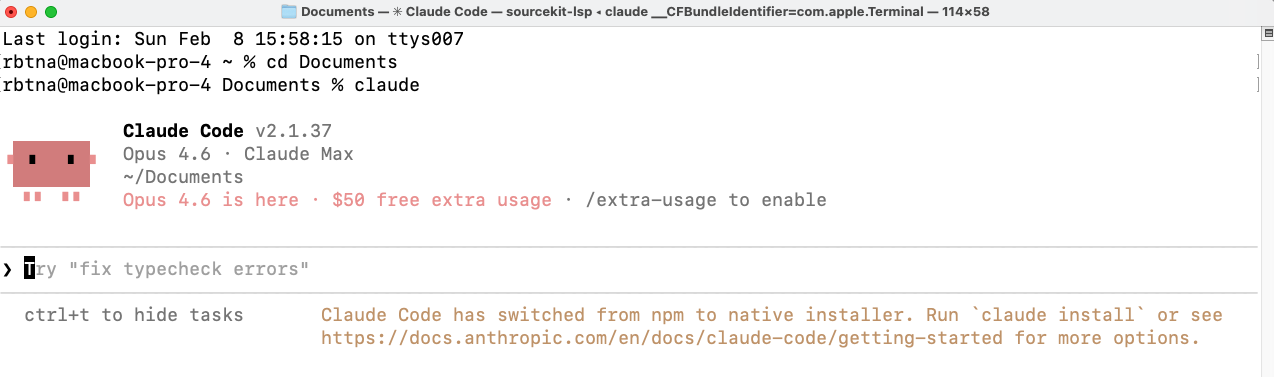
If you’re not already logged in, it’ll ask you to log in.
Use your Claude account.
Follow the prompts.
You’re in.
Now you’re in Claude Code, inside a project (Documents, if you followed the above) folder.
Extra: Make a Simple Webpage (3 mins)
Type something like:
Create a simple webpage that says “Hello, I’m [your name]” with a clean, modern design. 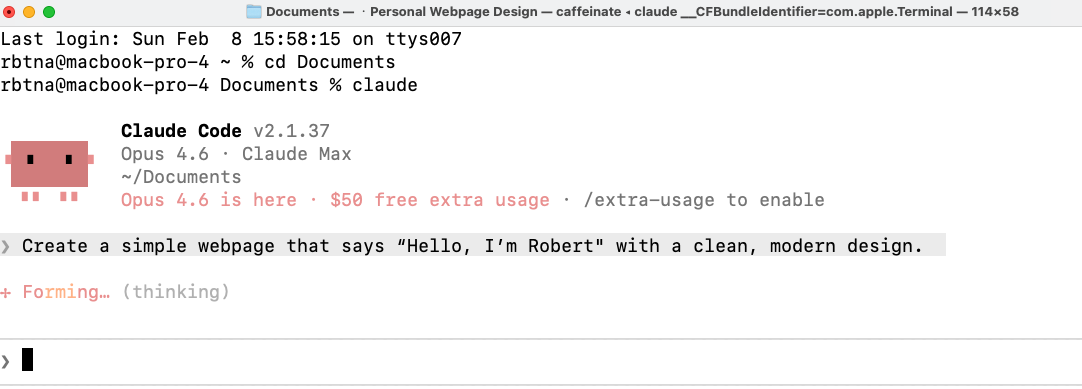
Watch what happens.
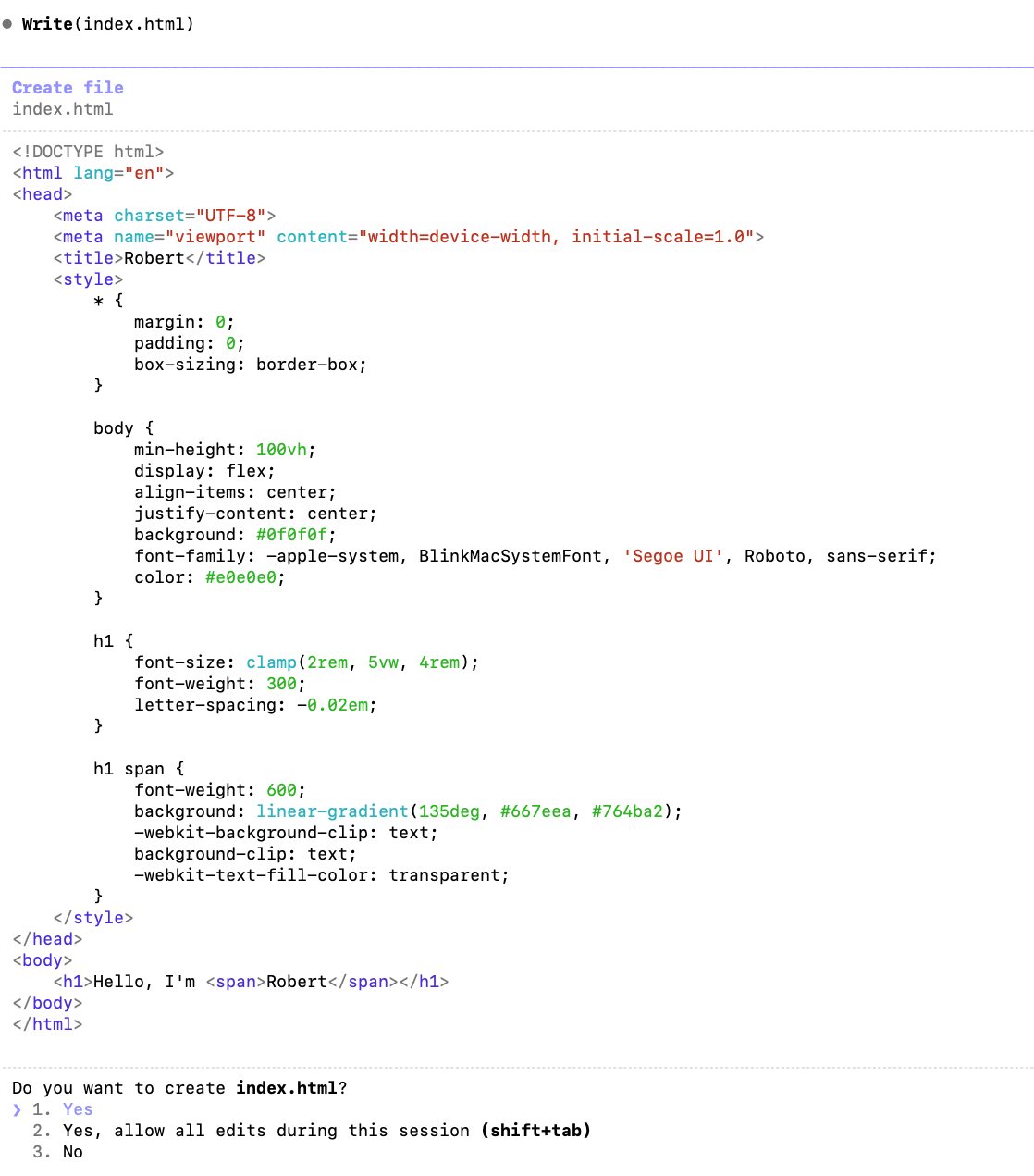
Claude Code will:
- Think about what you asked
- Create the files
- Show you what it did
- And ask you permissions along the way
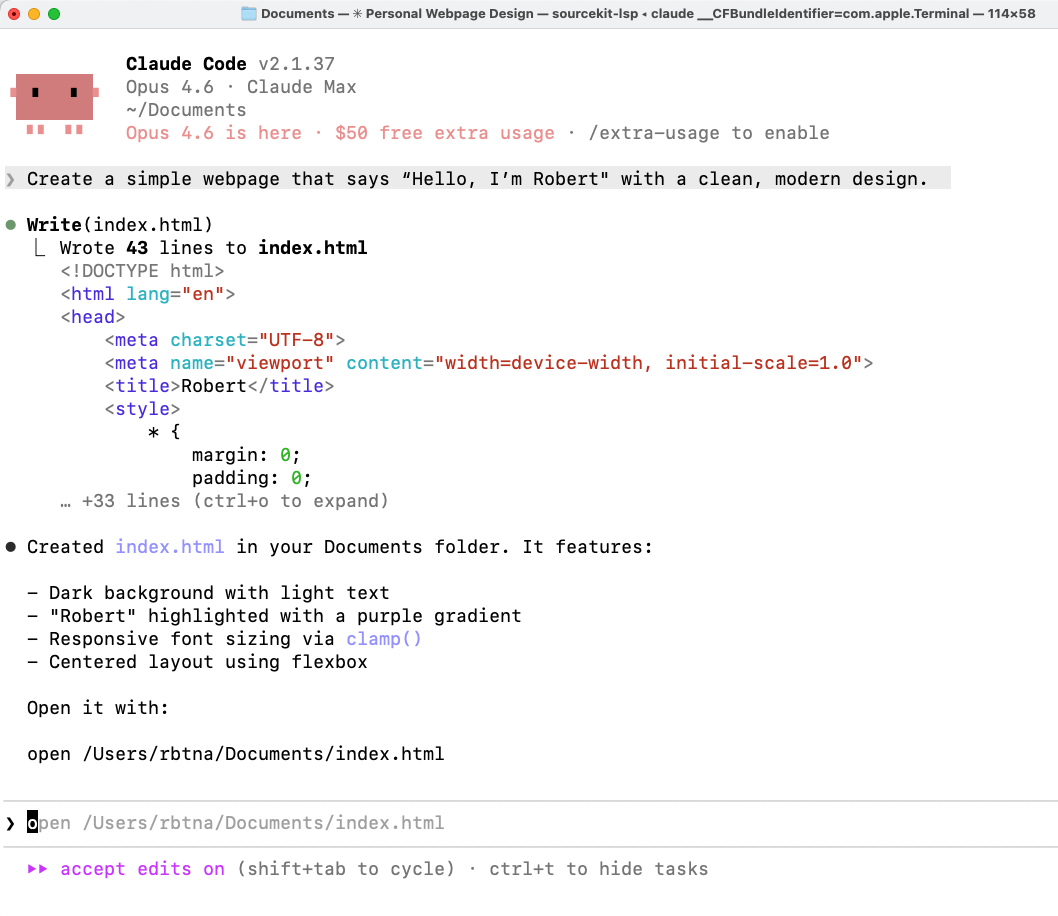
There’s an HTML file in there. You can use an auto-complete like in the above screenshot, by pressing “Tab” on your keyboard.
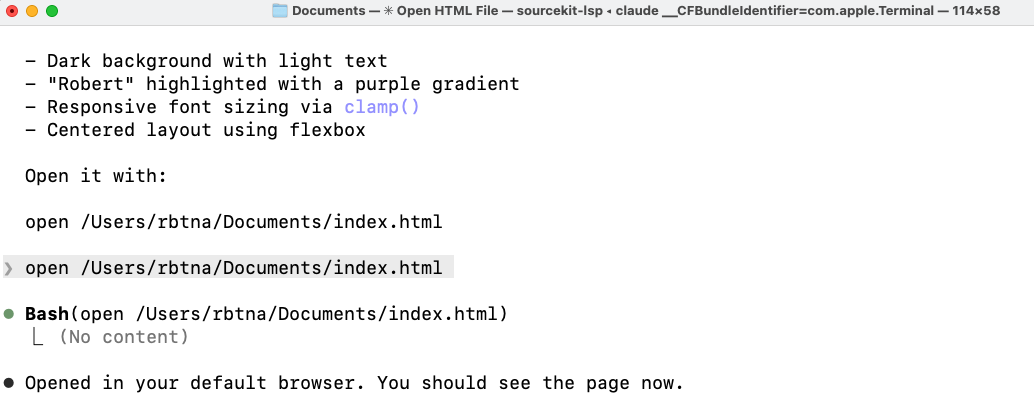
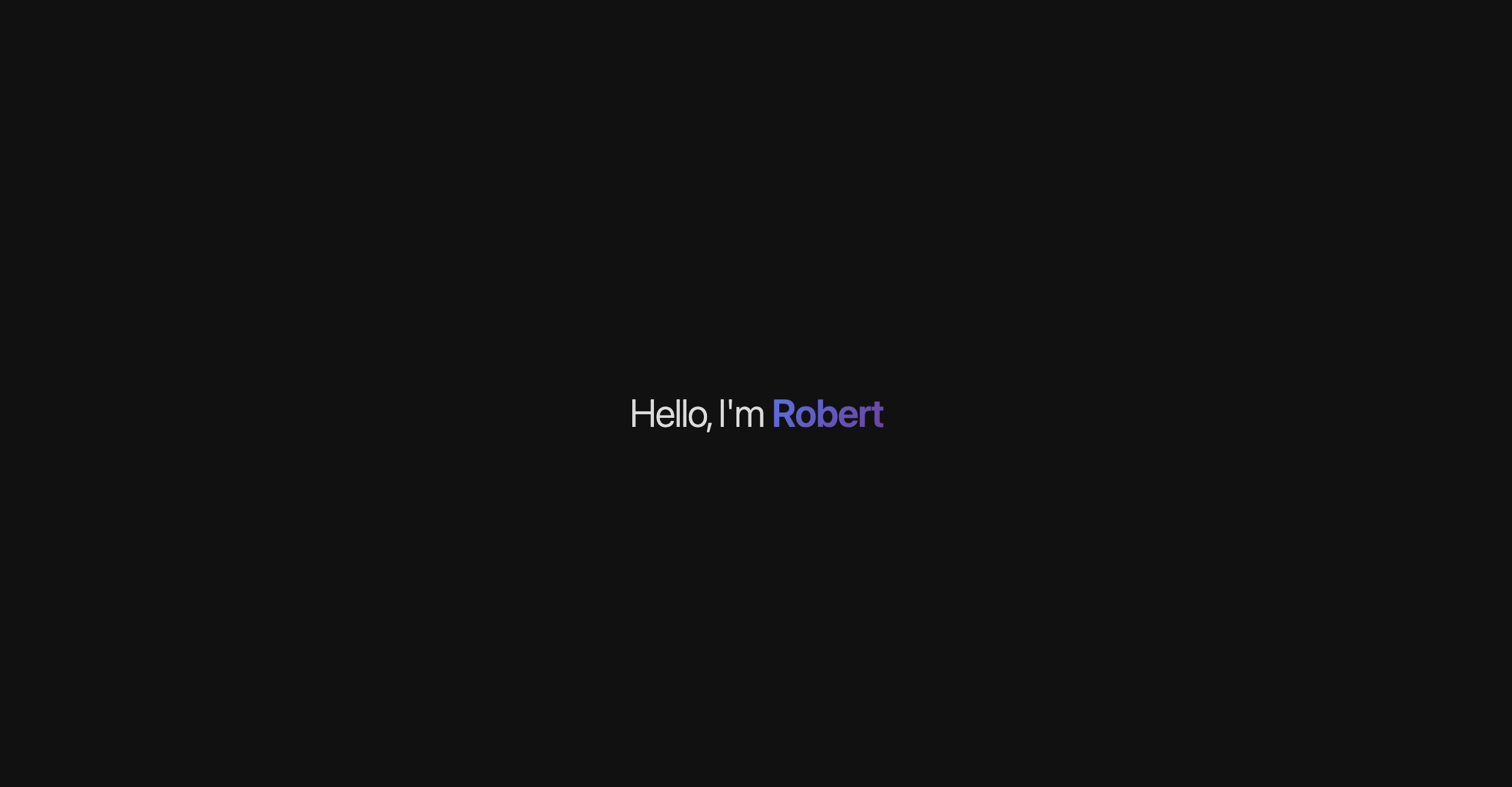
You just “built” a webpage.
Took maybe 90 seconds.
You’ll see the mode switch to Plan Mode.
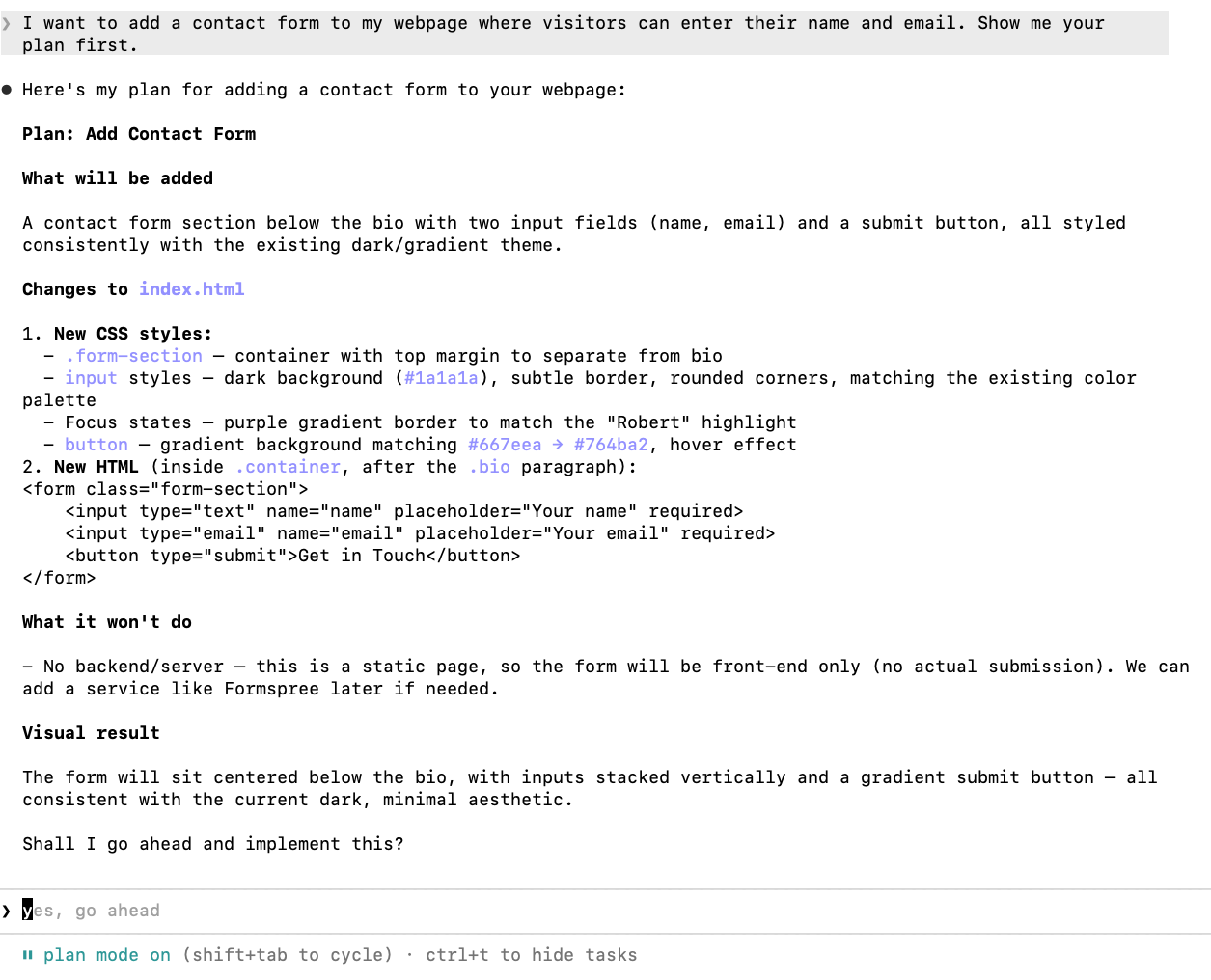
Here’s what it does:
Claude Code analyzes your project (or the root folder you’re in, or any folders you copy paste to tell it to look at), makes a plan, and shows it to you for feedback.
You get to review, ask questions, say “no, not like that,” and only then say “go.”
Try this:
I want to add a contact form to my webpage where visitors can enter their name and email. Show me your plan first.Claude will lay out exactly what it intends to do. Which files it’ll create. What code it’ll add. Why.
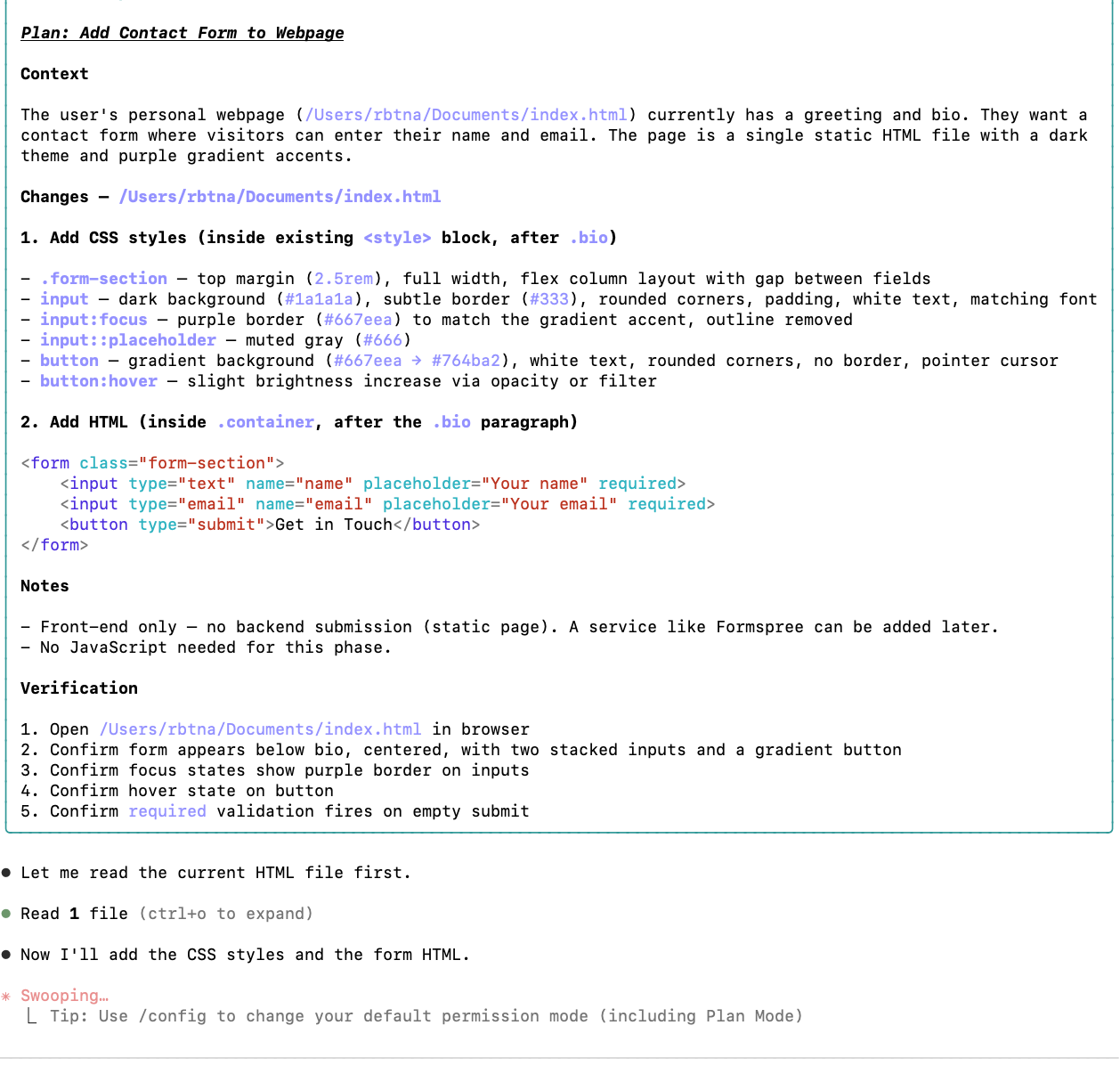
Read the plan. You don’t need to understand every line.
Look for the following:
- Does the description match what I asked for?
- Is it creating a reasonable number of files? (2-3 for something simple, not 47)
- Does the explanation make sense in plain English?
If it looks right, tell it to proceed.
If something feels off, just say what feels off. In plain English. “I don’t want it to send emails, just collect the info” or “Make the design more minimal.”
This is the loop: describe, review plan, adjust, approve, see results.
That’s it. That’s the whole workflow.
It’s about COMMUNICATION and SPECIFICITY
Here’s what I wish someone had told me when I started:
Your first 10 prompts will be mediocre, because you haven’t learned how to describe what you want yet.
You’ll say
“make it look nice”
when you mean
This is normal. It’s not a coding problem. It’s a communication problem.
The founders who get scary-good with Claude Code aren’t the ones who learn technical jargon.
They’re the ones who get specific about outcomes, with their language.
In my hundreds of hours using Claude Code, I’ve learned that it’s more of a clear communication problem than anything.
For example, these will bring wildly different results:
Add a testimonials sectionAdd a testimonials section with 3 cards, each showing a quote, the person’s name, and their company. Use the same styling as the rest of the page” = excellent.Specificity is the skill.
And if you’re a founder, you’ve been building that muscle every time you’ve written a product brief, a pitch deck, or drafted an email or slack message to the team.
Now type (and hit enter after each command):
Awesome, right? Stay with me.
Plan Mode: Your Safety Net
Type Shift+Tab twice.
Plan Mode is an especially important feature.
Continue reading
Get the full newsletter, free.
Join founders and builders who read Self Aligned every week.
What You Just Learned
In less than 5 minutes, you:
- Installed Claude Code
- Created a project from a plain English description
- Used Plan Mode to review changes before they happened
- Understood that the core skill is specificity, not technical knowledge
Now that you’ve gotten set up with Claude Code, next issue I’ll show you my development workflows for rapid prototyping, then bringing those to life with Claude Code as production services.
I’ll show you how to create a CLAUDE.md file that turns Claude Code from a generic assistant into something that knows your business, your brand, and your standards.
Claude Code is gonna graduate into your new Co-Founder. (;
Extra Things to Try With Claude Code
You’ve got the basics.
Here are a couple other things you can try today.
Just open Claude Code (by again, opening the terminal and typing and entering “claude”), paste the prompt, and see what happens.
Analyze your competitor’s website
Go to [competitor URL]. Tell me what their positioning is, who they’re targeting, what their pricing model looks like, and 3 things they’re doing better than us (ask me targeted questions for necessary context). Be brutally honest.Build a simple ROI calculator
Create a web-based ROI calculator for [your product/service].

Inputs: [what the customer would enter].

Output: estimated savings per month and per year, with a visual chart.

Make it look clean enough to embed on a website.
Feel free to go wild. It’s a big open world.
✌️Culture: Shoshin—Keep Your Beginner’s Mind
“In the beginner’s mind there are many possibilities, but in the expert’s mind there are few.” —Shunryu Suzuki
The most dangerous thing about being good at something is that it closes doors in your head.
In the age of AI, this is an especially bad habit. The rules of working are changing, every single day.
James Clear, author of Atomic Habits, wrote a great article on the concept of Shoshin from Zen Buddhism, which means “beginner’s mind”.
You “know” how things work, so you stop seeing what else they could be.
An expert developer might look at Claude Code and immediately think “spaghetti code, not worth it”.
A beginner looks at it and says, “Wait, I can just… describe what I want?”
Different lenses lead to different actions.
From everything I’ve read, I’ve come to believe the best founders operate in permanent shoshin.
Always keep your beginner’s mind.
Your first time opening a terminal? That’s not a disadvantage. That’s the purest form of beginner’s mind there is.
Liked this article?
💚 Click the like button.
Feedback or addition?
💬 Add a comment.
Know someone that would find this helpful?
🔁 Share this post.
Self Aligned by Robert Ta is a reader-supported publication. To receive new posts and support my work, consider becoming a free or paid subscriber.
P.S. Want reminders on entrepreneurship, growth, leadership, empathy, and product?
Follow me on..
***“use an accessible font, lots of white space, and a blue accent color.”***The step function improvements are unprecedented.